
Cheat sheet · Updated October 2026
Social media image sizes 2026 — resize an image for Instagram, Facebook & more
The pixel sizes and ratios every platform wants this year, in one table. Click a size and the resizer opens with the frame locked to that shape; drag it over the part of the photo you want, download, post.
One click
The ten sizes people use most
Each opens the resizer at exactly this size — the photo is cropped to the shape, never stretched.
Each link opens the resizer with these settings already filled in — you only choose the photo and press Download. Nothing is uploaded; the work happens in your browser.
Step by step
How to resize a photo for Instagram (or any platform)
-
01
Open the photo
Drag it in or click Choose a photo. iPhone HEIC photos open too.
-
02
Pick the size
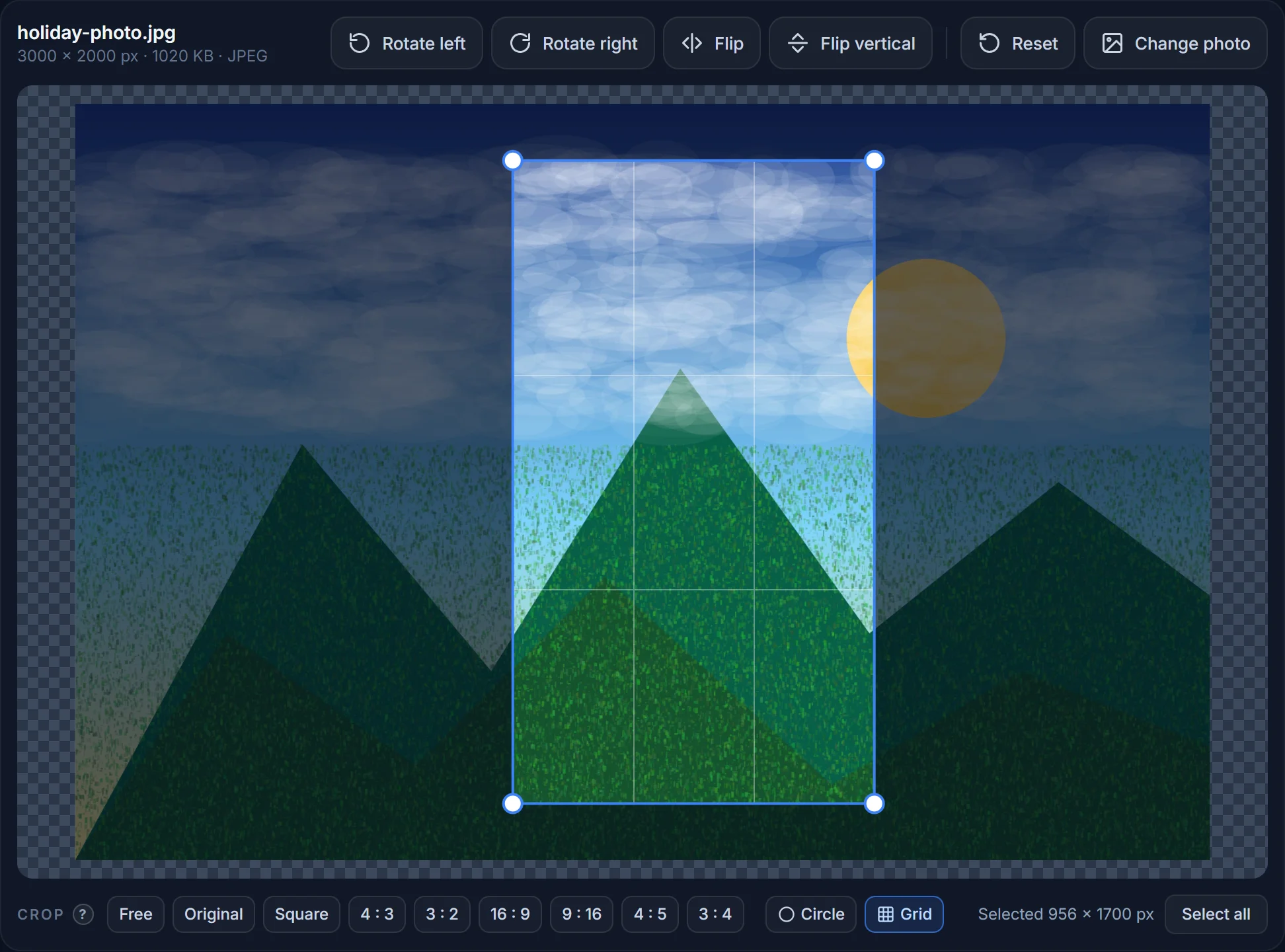
Click Common sizes → Social media and choose the platform and post type, or use a link on this page. The crop frame locks to the right shape and the pixel size is set.
-
03
Frame it
Drag the frame over the part of the photo you want to show; use the grid to line things up. A 4 : 5 portrait post keeps more of a vertical phone photo than a square.
-
04
Download and post
JPG at quality 82 is the default and is what every platform re-compresses anyway. Keep it under 2 MB for YouTube thumbnails and under 8 MB for Instagram; the size is shown before you save.
Reference
All social media image sizes (2026)
Recommended upload sizes. Platforms accept larger files with the same ratio and scale them down; anything with a different ratio gets cropped automatically — usually badly.
| Platform · image | Size | Ratio · notes |
|---|---|---|
| Instagram profile picture | 320 × 320 px | 1 : 1 — shown as a circle |
| Instagram square post | 1080 × 1080 px | 1 : 1 |
| Instagram portrait post | 1080 × 1350 px | 4 : 5 — largest in the feed |
| Instagram landscape post | 1080 × 566 px | 1.91 : 1 |
| Instagram Story · Reel cover | 1080 × 1920 px | 9 : 16 — keep text out of the top and bottom 250 px |
| Facebook profile picture | 400 × 400 px | 1 : 1 — displayed at 170 px |
| Facebook cover photo | 820 × 312 px | Shown 640 × 360 on phones — keep the middle safe |
| Facebook post / shared link | 1200 × 630 px | 1.91 : 1 |
| Facebook Story | 1080 × 1920 px | 9 : 16 |
| X (Twitter) profile picture | 400 × 400 px | 1 : 1 — shown as a circle |
| X header | 1500 × 500 px | 3 : 1 |
| X post image | 1600 × 900 px | 16 : 9 |
| LinkedIn profile picture | 400 × 400 px | 1 : 1 |
| LinkedIn personal background | 1584 × 396 px | 4 : 1 |
| LinkedIn company logo | 300 × 300 px | 1 : 1 |
| LinkedIn company cover | 1128 × 191 px | Page banner |
| LinkedIn post image | 1200 × 627 px | 1.91 : 1 |
| YouTube channel picture | 800 × 800 px | 1 : 1 — shown as a circle |
| YouTube channel banner | 2560 × 1440 px | Safe area 1546 × 423 in the centre |
| YouTube thumbnail | 1280 × 720 px | 16 : 9, JPG/PNG under 2 MB |
| TikTok profile picture | 200 × 200 px | 1 : 1 |
| TikTok video cover | 1080 × 1920 px | 9 : 16 |
| Pinterest pin | 1000 × 1500 px | 2 : 3 |
| WhatsApp profile picture | 640 × 640 px | 1 : 1 |
| Website / blog Open Graph image | 1200 × 630 px | 1.91 : 1 — what Facebook, LinkedIn, Slack and iMessage show for a link |
Based on the platforms’ published recommendations, last reviewed September 2026. Platforms change them quietly; if an upload looks cropped, the ratio is the first thing to check.
Why it matters
Ratio first, pixels second, file size last
Every platform scales your image to fit its layout, so the exact pixel count matters less than the ratio. A 4 : 5 photo uploaded to a 1 : 1 slot gets its top and bottom chopped off; a 16 : 9 header uploaded as 3 : 1 loses the sides. Resizing to the recommended size here means you decide what gets cropped, not the app.
Pixels: upload at the recommended size or up to twice it — anything bigger is scaled down anyway, anything smaller is scaled up and looks soft. File size: platforms re-compress everything, so a JPG at quality 80–85 is all you need; going higher only makes the upload slower.
Profile pictures
Circles, squares and safe areas
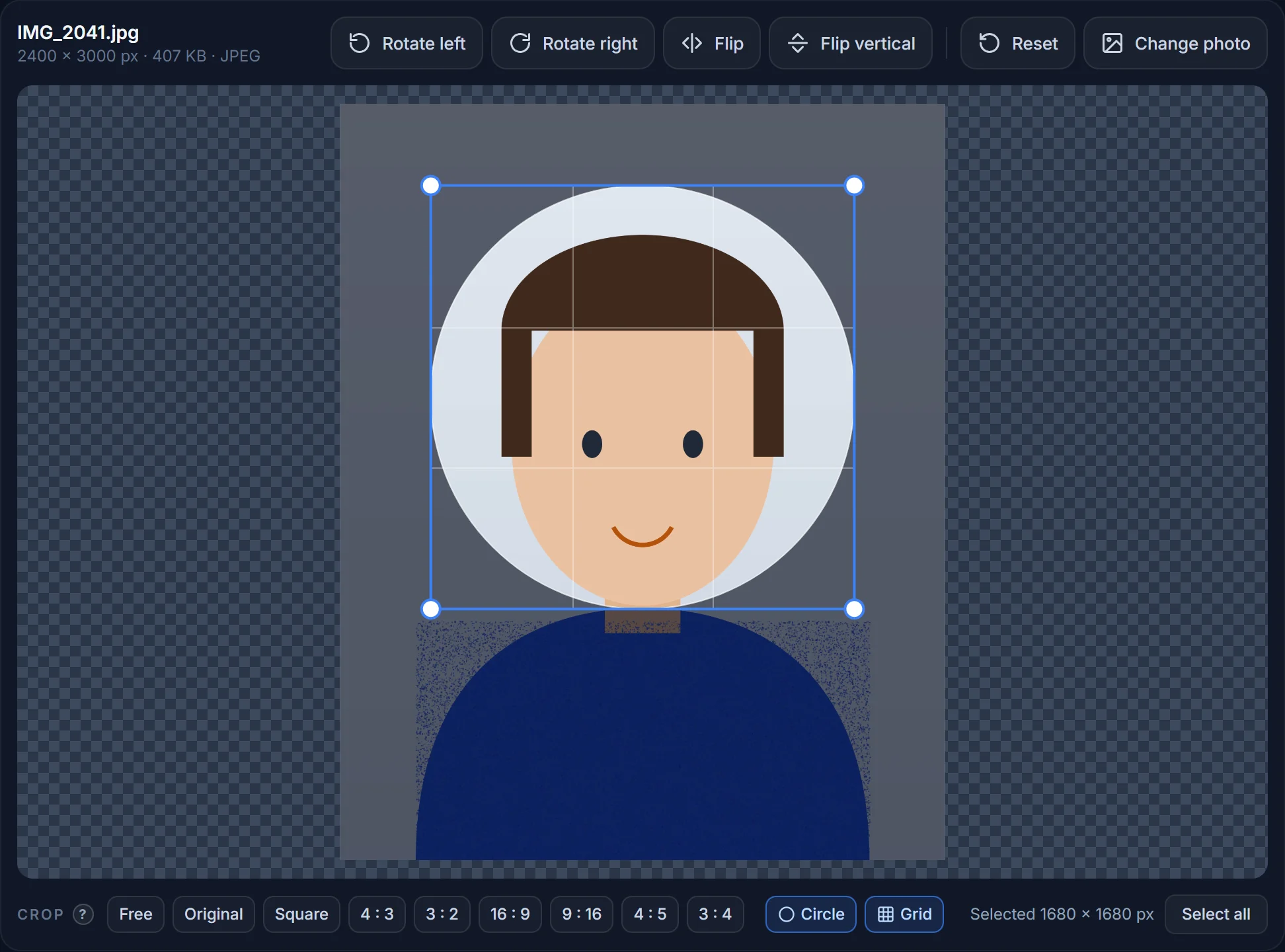
Instagram, X, LinkedIn, YouTube, WhatsApp and Discord all display the profile picture as a circle but ask for a square upload. Crop a square with the face centred and leave a little room around it — the corners disappear. You only need the Circle crop for websites or documents where the round shape must be baked into the file.
Cover images and banners are shown differently on phones and desktops: Facebook covers lose the sides on desktop and the top and bottom on phones; the YouTube banner is 2560 px wide but only the centre 1546 × 423 px is visible everywhere. Keep faces and text inside those safe areas.
How do I resize an image for Instagram?
Open the photo, click Common sizes → Social media → Instagram and choose Square post (1080 × 1080), Portrait post (1080 × 1350) or Story / Reel (1080 × 1920), drag the frame over the part you want, and download. Use the links on this page to skip the menu.
What size should an Instagram post be in 2026?
1080 × 1080 px for a square, 1080 × 1350 px for a portrait (4 : 5) post, 1080 × 566 px for landscape. Stories and Reels are 1080 × 1920 px (9 : 16).
What size is a Facebook cover photo?
820 × 312 px on desktop; phones show it at 640 × 360, so keep the important part in the middle. Upload a JPG under 100 KB for the fastest loading.
What size is a YouTube thumbnail?
1280 × 720 px (16 : 9), JPG or PNG, under 2 MB. Text should be large — the thumbnail is often seen at 200 px wide on a phone.
What size is an X (Twitter) header?
1500 × 500 px (3 : 1). The profile picture overlaps the bottom-left corner, so keep that area empty.
What size is a LinkedIn banner?
1584 × 396 px (4 : 1) for a personal profile; 1128 × 191 px for a company page.
Why does my photo look blurry after uploading?
Usually because it was smaller than the recommended size and got scaled up, or because a PNG with lots of detail was re-compressed hard by the platform. Upload a JPG at the recommended size and quality 80–90.
Resize a photo for social media
Pick the platform, drag the frame, download. Free and nothing is uploaded.